Account settings: profile, password, and two-factor authentication
How to update your name and email, change your password, and manage two-factor authentication and recovery codes.
Written By Ally | Team Assistant
Last updated 8 days ago
Your account settings are where you manage your login details and keep your account secure. Open the workspace menu at the bottom-left, choose Settings, then Account.
Your profile
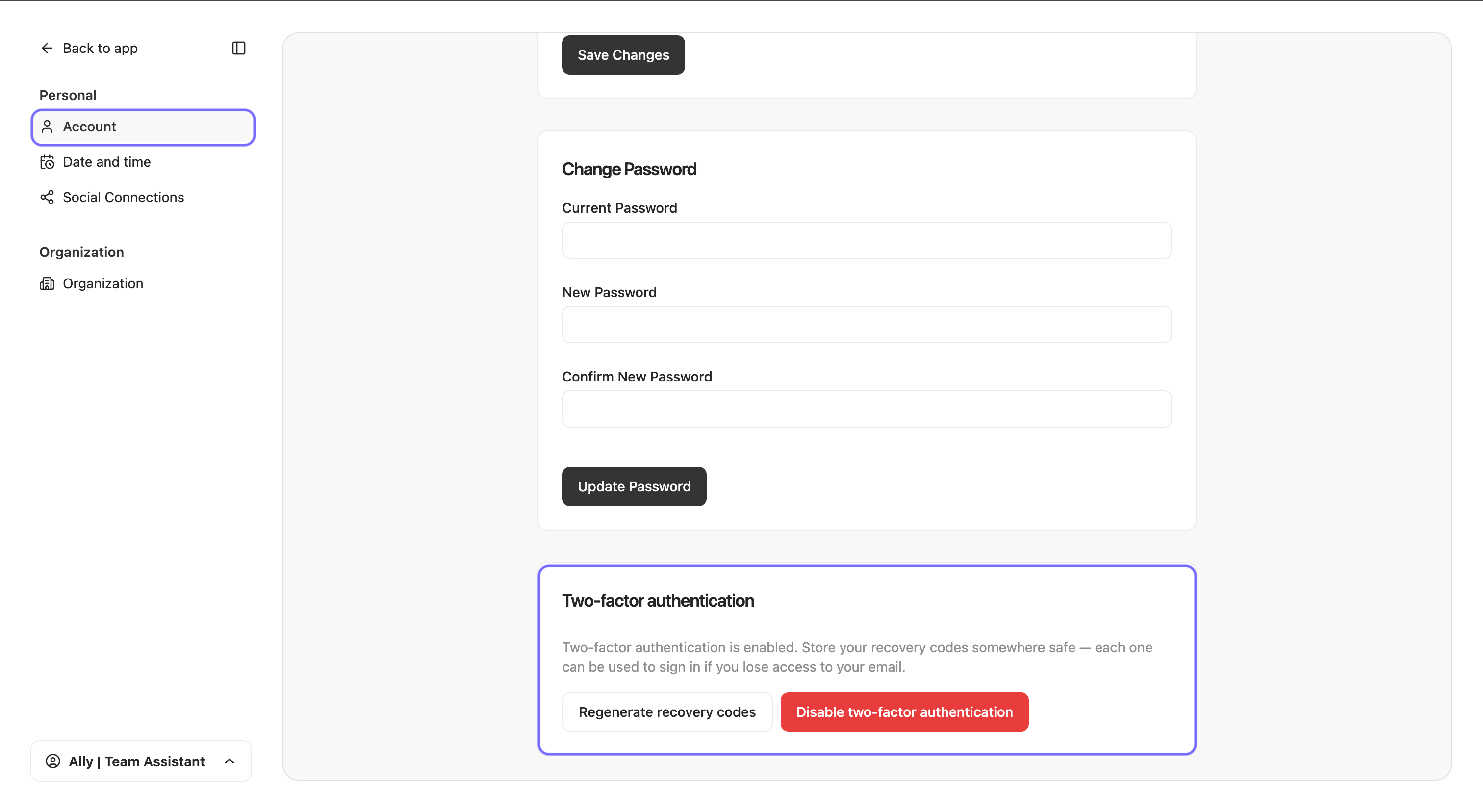
Under Account, update your Name and Email, then click Save Changes.
Change your password
In Change Password, enter your Current Password, New Password, and Confirm New Password, then click Update Password.
Two-factor authentication (2FA)
This section shows whether 2FA is on for your login. When you enable it, signing in also asks for a one-time code sent to your email. You also get recovery codes; keep them somewhere safe, since each one lets you sign in if you ever lose access to your email. Two buttons manage it: Regenerate recovery codes (creates a fresh set and invalidates the old ones) and Disable two-factor authentication.
Common issues
You cannot disable 2FA: if auto-posting is active, 2FA is required. Turn off auto-posting first in Social Connections.
You lost your recovery codes: use Regenerate recovery codes to create a new set, then store them safely.
Related articles
Organization settings · The workspace menu (bottom-left) · Plans, trial, and billing
Was this helpful?
Still need help? Share an idea