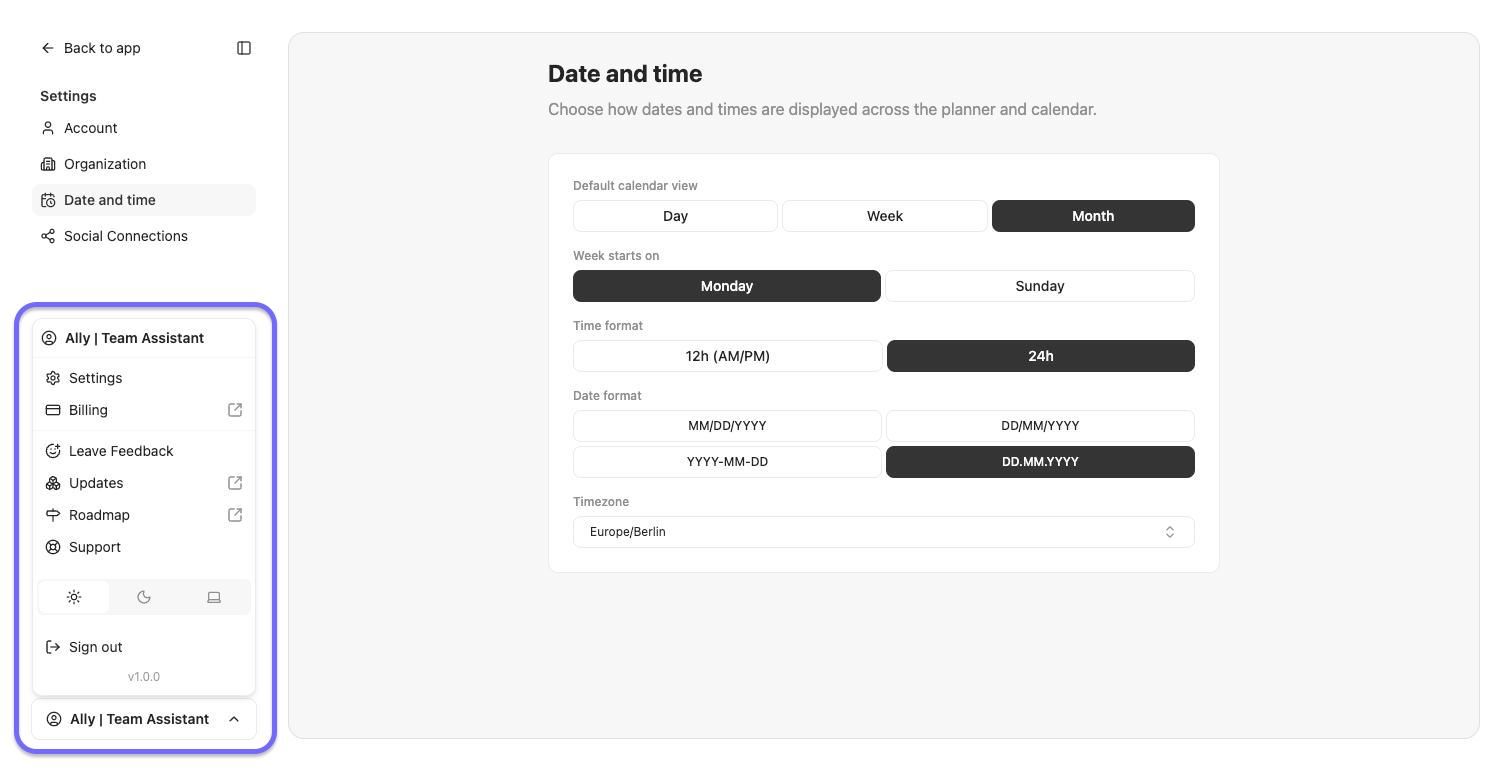
The workspace menu (bottom-left)
What each item in the bottom-left workspace menu does, from Settings and Billing to Support, Updates, and Sign out.
Written By Ally | Team Assistant
Last updated 8 days ago
The button at the bottom-left of the app, showing your organization name, opens the workspace menu. From here, you can access your settings, billing, support, and product updates.
What each item does
Settings: opens your Settings pages (Account, Organization, Date and time, Social Connections).
Billing: opens your subscription and payment management in a new tab. This is also where you can cancel your subscritpion.
Leave Feedback: opens the feedback board in a new tab, where you can submit ideas and vote on others.
Updates: opens the product changelog in a new tab, listing what is new.
Roadmap: opens the product roadmap in a new tab, showing what is planned.
Support: opens our help center / knowledge base providing various articles to help you answer your questions.
You can always just ask our Team Assistant Agent Ally in the Chat to answer your questions.
Appearance: the three-way switch for light, dark, or system theme.
Sign out: logs you out of Whaaat AI.
Common questions
Where do I manage my plan or payment method? Open Billing from this menu. This is also where you can cancel your subscription.
How do I report a bug or request a feature? Leave Feedback by posting an idea / bug others can vote on or send a support message to our team.
What is new, and what is coming? Check Updates for the changelog and Roadmap for what is planned.
Related articles
Account settings · Organization settings · Date and time preferences · Plans, trial, and billing
Was this helpful?
Still need help? Share an idea